 Redline
Pages and drawing scale
With nothing selected, Inspector offers page creation and the page list. Add the first page there; for an existing layout, adjacent placement strips let you choose where the next page goes.
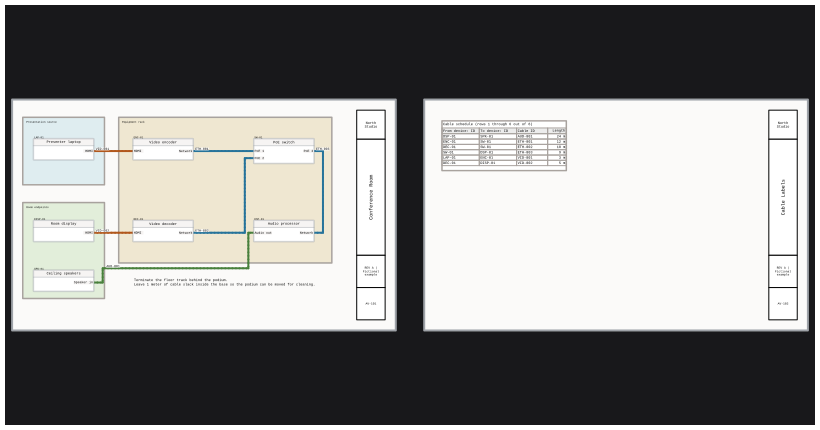
Content outside the pages remains on the canvas but is not exported. Use selection export when you want a fitted detail outside the page layout.
Paper size and grid density
Paper format and orientation are project-wide choices in Project Settings.... Grid density belongs to each page. At one square per centimeter, each square is 10 mm; at two per centimeter, each is 5 mm.
Higher density fits more grid squares on the same paper, making devices and other drawing objects smaller in the export.
Frontmatter text is different: its font sizes stay the same physical size across the document, regardless of page density. In the editor, it can therefore look larger or smaller relative to drawing objects or grid squares. See Frontmatter and title blocks for details.
Page names, IDs, and order
Summary: Pages opens the table for names, IDs, ordering, and frontmatter information. Reordering pages changes the document sequence, not their physical layout. Select a cell to edit its page information; use the order controls to move a sheet earlier or later in the export.
Changing the layout
Applying a paper change can enlarge or shrink page regions. Redline rejects changes that conflict with objects in the destination area instead of silently moving unrelated content. Clear the reported overlap before retrying.
After shrinking pages, compaction restores the normal eight-square gaps. First move overflowing objects inside a page or clear of its former region. Compaction changes the layout; it is not a camera-fit operation.
Removing a sheet
Page deletion removes the page and its contents. Use Ctrl+Z to restore them.
Deleting selected objects does not delete the page. See Undo, branches, and local history for more about undo.