 Redline
Working on the canvas
The canvas is where you arrange devices and connections. Pan and zoom to find your way around, then select an object to move it or edit its properties.
Finding your way around
Use  to pan through the canvas and = / - / Ctrl+
 / Ctrl+
 to zoom in and out. Pointer zoom is centered on the pointer; keyboard zoom uses the canvas center. Shift+F fits the selection, or the drawing when nothing is selected.
Selecting what you mean
 / Shift+
 / Ctrl+Shift+
 selects an object. Drag from empty canvas to make a selection rectangle, or use Ctrl+
 to toggle whether something is selected. Ctrl+A selects all drawing objects.
Ports start connections; a device body selects the device. Clicking a routed line selects a connection or one of its route steps. Inspector shows what is selected, including overlapping objects.
Moving devices
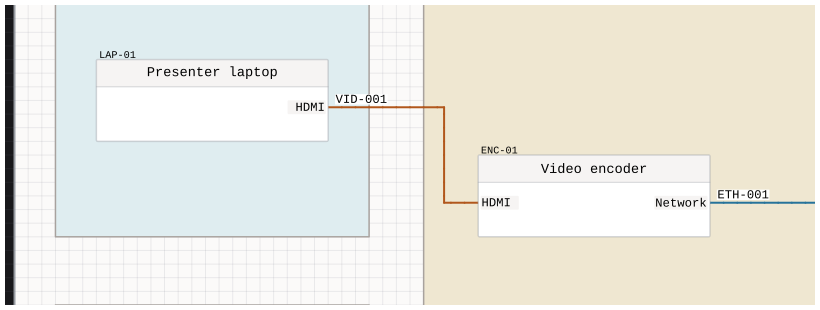
Moving a device keeps its ports connected and updates their routes. Manually edited routes adapt to the new positions while trying to preserve their turns. See Connections and routes.
Editing with the inspector
The inspector shows properties for the selected device, port, or connection. With nothing selected, it offers creation tools and page controls.
Removing content
Delete removes selected drawing objects. Deleting a device also removes connections to its ports.
Page deletion is separate and removes the page and its contents. It is not the ordinary delete action. Undo, branches, and local history explains how to return to an earlier edit.