 Redline
Connections and routes
A connection records which ports are joined. Its route is the path drawn between them. Editing the route leaves the same ports connected; changing an endpoint connects the cable to a different port.
Connecting ports
Use  / Shift+
 / Ctrl+Shift+
 on a port and then on a destination port. Esc clears a pending connection. Connections leave ports horizontally before turning around the equipment.
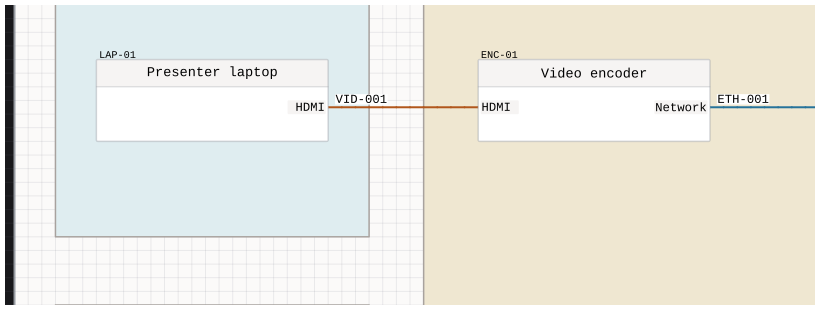
Source and destination describe the connection's direction. Reversing direction swaps those roles without selecting a different pair of ports. Reassigning an endpoint is different: it connects the cable to another physical connector.
Automatic routing
Redline generates routes around device geometry. This lets you move equipment without redrawing every cable.
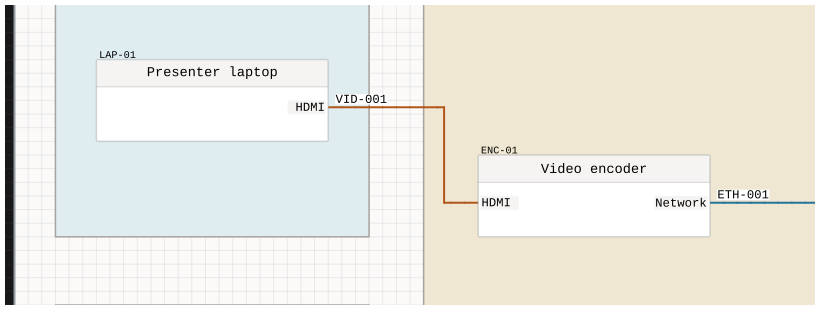
Crossing routes do not create a junction. Connections join only at their endpoint ports.
Choosing a path
Select a connection and use the Edit Route button in Inspector. Use / Shift+ / Ctrl+Shift+ to add turns, Backspace to remove the latest turn, and Enter to finish. Esc leaves the active edit without committing it.
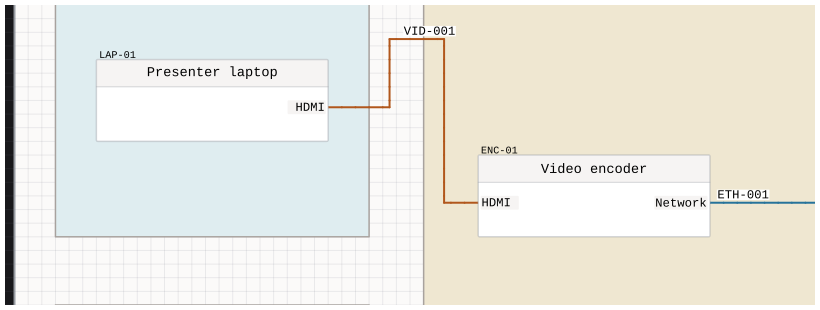
You can also finish by clicking the destination port.
Locking and resetting
A locked route tries to preserve its turns when a connected device moves. Resetting removes the chosen path and generates a new automatic route. Locking a route does not prevent you from moving its devices or ports.
Crossings and small adjustments
A jump marks a crossing without creating a junction. Its priority and orientation change how the crossing is drawn, not which cables are connected.
Route steps are the grid-square pieces of a line. Their subgrid points allow small adjustments within a square. Regenerating a route can replace these adjustments.
Changing an endpoint
Changing to a different physical port updates the route and clears any explicit cable-group choice. The new endpoints determine the group for future numbering proposals; this does not automatically replace an existing cable ID.
If the cable appears elsewhere in the drawing, reconnecting one occurrence makes it a separate cable and clears its number. The other occurrences keep their connection and ID.
See Summary: Edge for numbering and Flags on edges for presentation.